Host Static HTML, CSS, and JavaScript Pages on Custom Domains
With Trakio, you can host static HTML, CSS, and JavaScript pages directly on your connected custom domains. This allows you to transform your custom domain into a fully functional static website while still benefiting from Trakio’s link management and analytics features.
This feature is ideal for:
- Landing pages
- Product showcases
- Campaign pages
- Portfolio websites
- Documentation pages
- Temporary event sites
- Lightweight static web applications
Pro Plan Feature
Static page hosting is available exclusively in the Trakio Pro Plan.
Current Limits
- Maximum of 10 hosted files/pages per domain
- Additional page limits can be requested through Trakio Support
Why Use Static Hosting on Custom Domains?
This feature gives your custom domain two powerful capabilities:
1. Custom Domain Link Tracking
Use your domain for branded and trackable short links.
2. Static Website Hosting
Host your own HTML, CSS, and JavaScript website directly on the same domain.
This means your domain can function both as:
- A branded short-link domain
- A static hosting platform
Step 1: Log in to Your Account
Open the login page and sign in to your dashboard:
If you do not already have an account, Sign Up Here
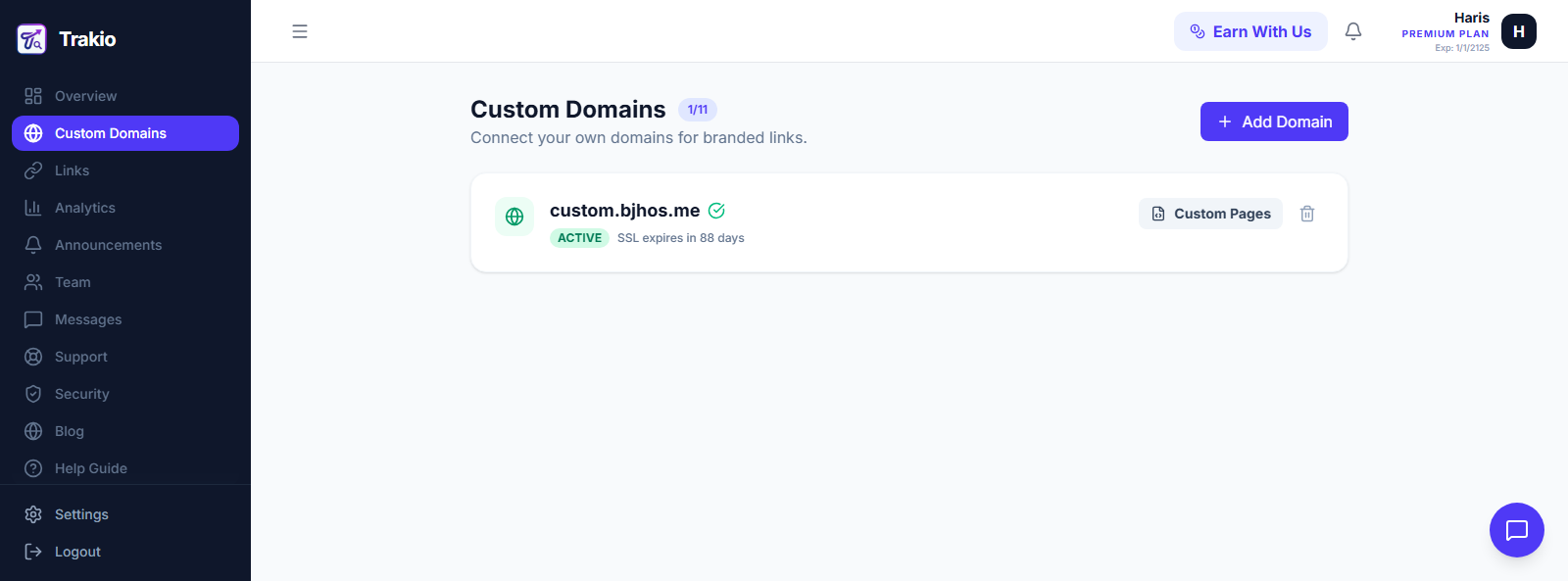
Step 2: Open the Custom Domains Section
After logging in:
- Open the sidebar menu
- Click on “Custom Domains”
Before continuing, make sure your custom domain is already connected and configured properly.
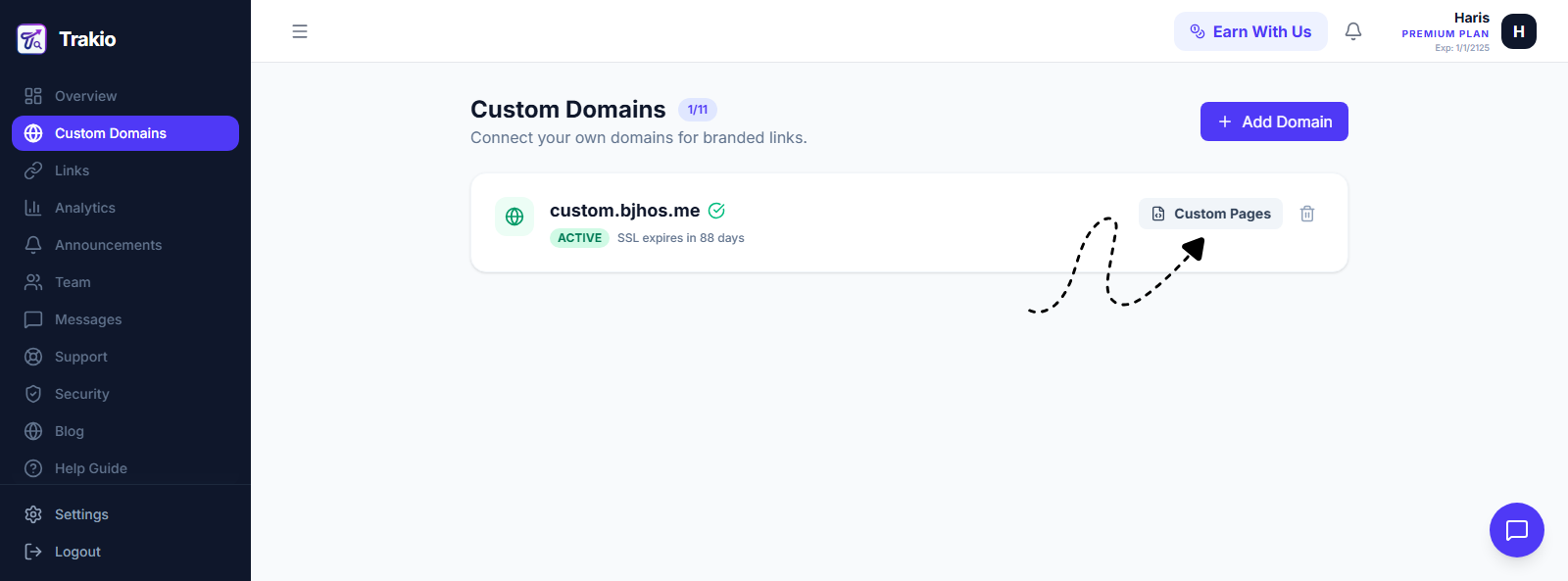
Step 3: Open Custom Pages
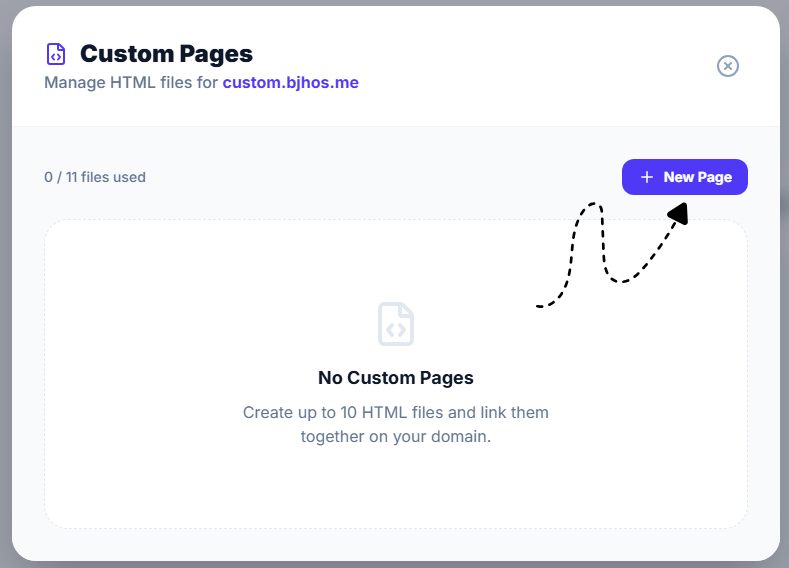
Inside your custom domain entry, click the Custom Pages button.
A new dialog window will appear containing your hosted files and pages.
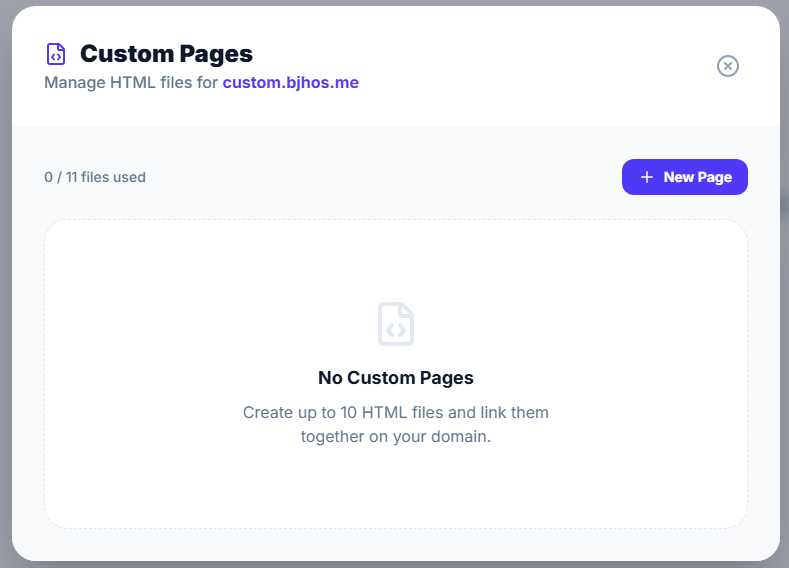
Step 4: Create a New Page
Click the New Page button.
You will be asked to enter a filename.
For your main homepage, enter:
index.html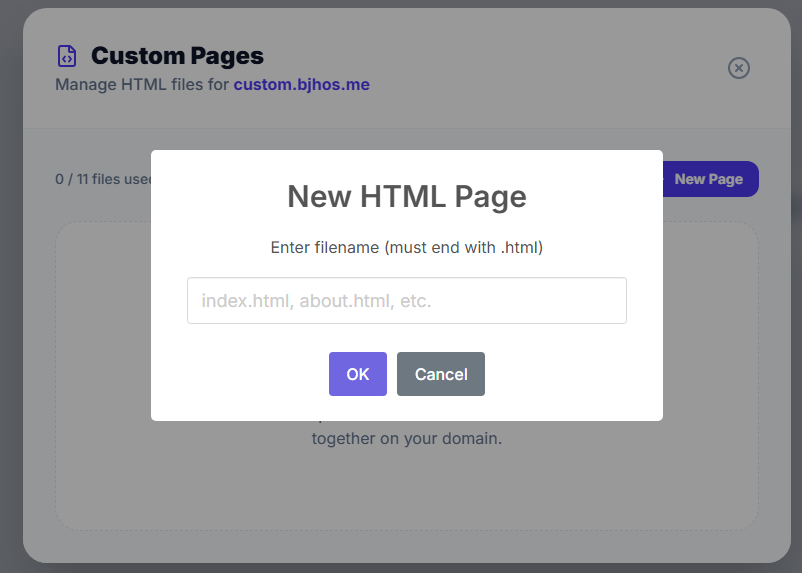
After creation, the file will appear in your pages list.
Important: Understanding index.html
The index.html file acts as the main entry point of your website.
Once this file is created:
- The default Trakio landing page on your custom domain is automatically removed
- Your uploaded
index.htmlpage becomes the new homepage of the domain
Example:
https://yourdomain.comwill automatically load:
index.htmlStep 5: Edit Your Page
To write your own HTML, CSS, or JavaScript code:
- Hover your mouse over the filename
- Click the pencil (edit) icon
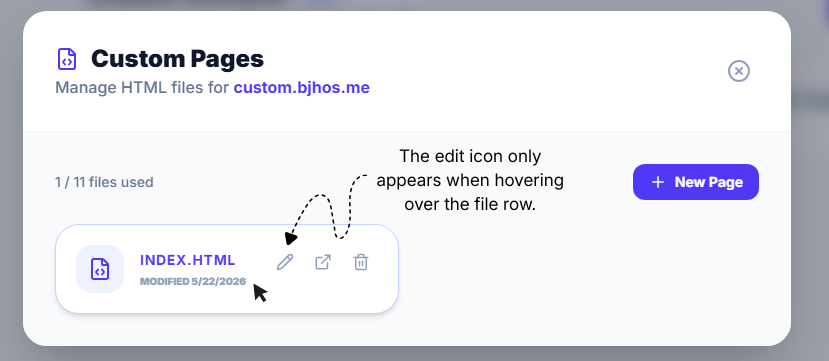
Note:
The edit icon only appears when hovering over the file row.
Step 6: Write Your HTML, CSS, and JavaScript
After clicking the edit button, a code editor dialog will open.
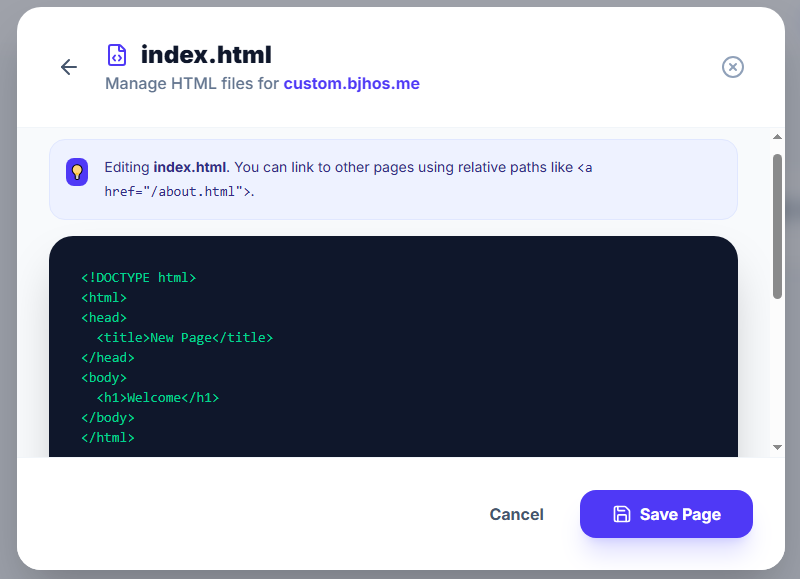
You can now:
- Write HTML pages
- Add CSS styling
- Include JavaScript functionality
- Build complete static websites directly inside the editor
Creating Multiple Pages
You can create additional pages such as:
- about.html
- contact.html
- pricing.html
- docs.html
Each file can link to other files using relative paths.
Example:
<a href="/about.html">About Us</a>Step 7: Access Your Website
After creating and editing your pages, your website becomes instantly available on your connected custom domain.
To access your website:
- Open your custom domain in a browser
Example:
https://yourdomain.comYou will now see the webpage you created using your index.html file.
If you created additional pages such as:
- about.html
- contact.html
- pricing.html
You can access them directly through their paths:
https://yourdomain.com/about.htmlhttps://yourdomain.com/contact.htmlAny changes you make inside the editor are automatically reflected on your custom domain after saving.
File Limits
By default:
- Maximum 10 files/pages are allowed per domain
If you need more:
- Contact Trakio Support to request an increased limit
Common Use Cases
Landing Pages
Create marketing or product launch pages.
Portfolio Websites
Host personal or business portfolios.
Documentation
Publish lightweight documentation sites.
Campaign Pages
Launch event or promotion-specific websites.
Redirect + Website Combination
Use the same custom domain for:
- Trackable links
- Static pages
- Marketing campaigns
Best Practices
Keep Files Organized
Use clear filenames for easier management.
Use Relative Paths
Always use relative paths when linking between files.
Keep index.html Clean
Since it is your main entry point, ensure it loads quickly and clearly represents your site.