How to Protect Your Links with a Password
Protecting your short links in Trakio allows you to control access and ensure only users with the correct password can reach your destination URL. This feature is useful for private content, client resources, or restricted access links.
Step 1: Log in to Your Trakio Account
Open the login page and sign in to your dashboard:
Step 2: Open the Links Section
After logging in:
- Go to the sidebar menu
- Click on “Links”
- Select “Create Link”
Step 3: Create a Password-Protected Link
Fill in the required fields:
- Destination URL
- Short Link
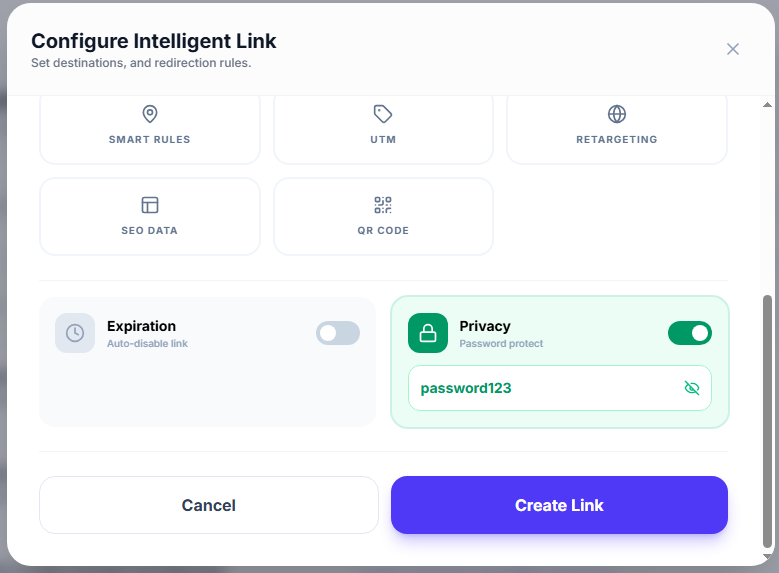
Scroll down to the Privacy section.
There you will find the option:
- Password Protect (toggle)
Enable the toggle, then:
- Enter your desired password in the password field
Finally, click Create Link.
Step 4: What Happens After Creation
Once the link is created:
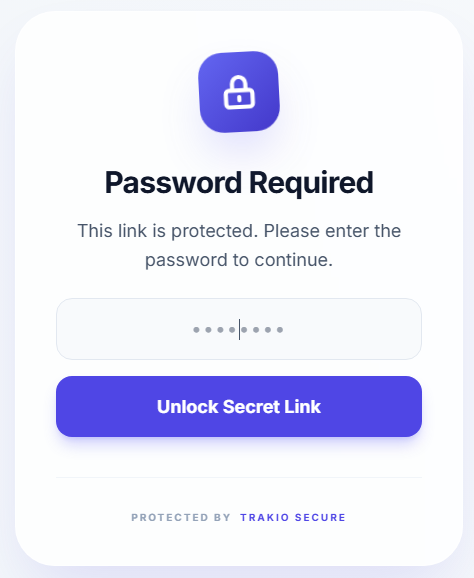
- Users opening the link will see a password screen first
- They must enter the correct password to access the original URL
- The system is secured by Trakio Secure, which includes:
- Rate limiting protection
- Bot protection
- Access control safeguards
Step 5: Edit an Existing Link
If the link already exists, you can still modify it:
- Open the Links list
- Click the Edit button on the specific link
- Scroll to the Privacy section
- Enable Password Protect and set or update the password
- Save changes

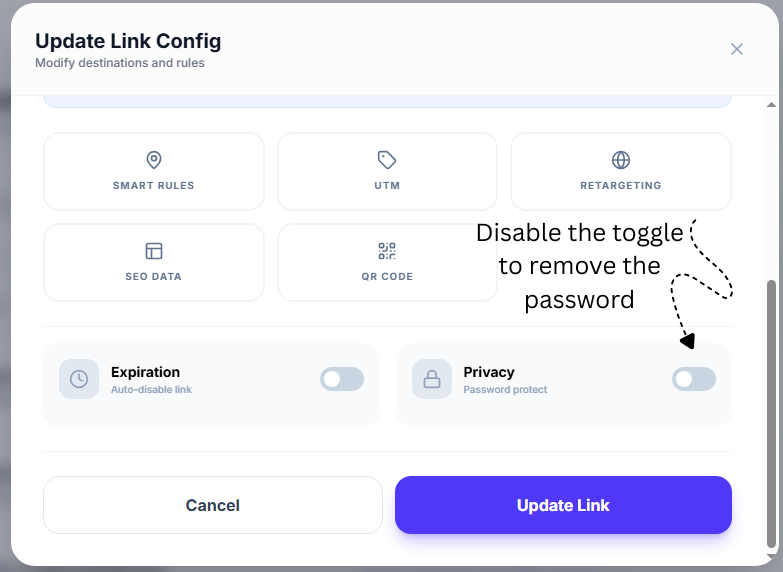
Step 6: Remove Password Protection
To disable password protection:
- Open the link in Edit mode
- Turn off the Password Protect toggle
- Save the changes
After this, the link will become publicly accessible again.